Email Automations
Automations send emails automatically based on triggers — no manual action needed.
Available Triggers
Section titled “Available Triggers”- Registration Confirmed — Send immediately or after a delay.
- X Days Before Event — Pre-event reminders.
- X Days After Event — Post-event follow-ups, satisfaction surveys.
- Session Bookmark Added — Remind the attendee about sessions they saved.
Creating an Automation
Section titled “Creating an Automation”- Go to Email → Automations.
- Click New Automation.
- Select a Trigger.
- Set the Delay (e.g., immediately, or 2 days after trigger).
- Select or create an Email Template for this step.
- Optionally add more steps to build a drip sequence (click + Add Step).
- Toggle the automation Active.
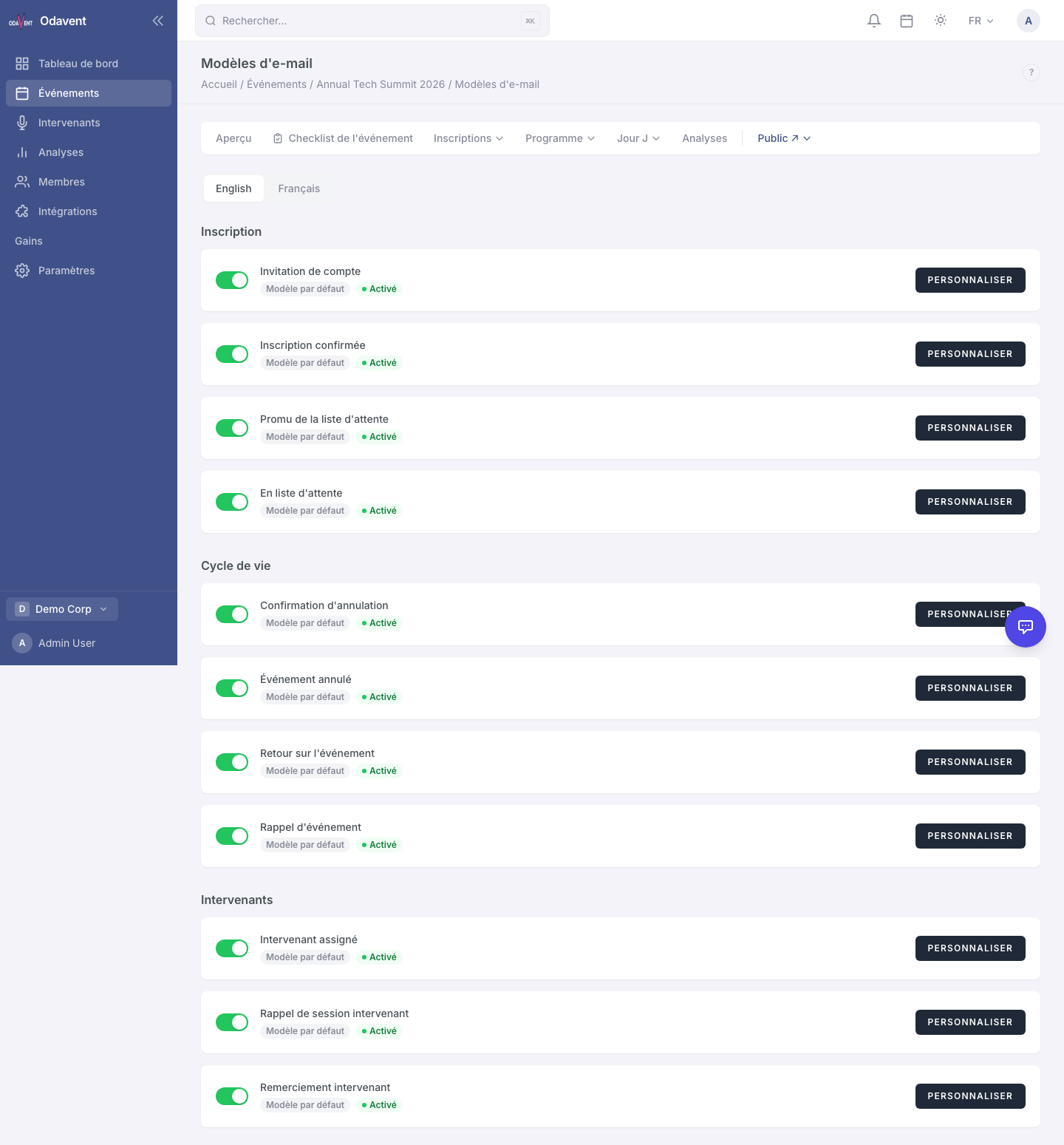
Org-Level Automation Templates
Section titled “Org-Level Automation Templates”If you run multiple events with the same automation flow, save your automations as Organization Templates.
- On any automation, click Save as Template.
- When creating a new event, go to Email → Automations → Load from Template to reuse it.