
Getting Started
This section walks you through creating your account, setting up your organization, choosing a plan, and understanding the dashboard.
Creating an Account
Section titled “Creating an Account”The Odavent uses email and password authentication. You can also sign in with a social account (Google, Microsoft, GitHub, or LinkedIn).
To create an account with email:
- Navigate to the platform’s sign-up page.
- Enter your full name, email address, and a secure password.
- Click Create Account.
- Open the confirmation email sent to your address and click the verification link.
- You will be redirected to the dashboard.
To sign in with a social account:
- On the login page, click the Sign in with Google (or Microsoft, GitHub, LinkedIn) button.
- Authorize the platform in the pop-up window.
- You will be redirected to the dashboard on first login, where you will be prompted to set up your organization.
Tip: If you already have an account and sign in with a social provider that matches your email, the accounts will be linked automatically.
Setting Up Your Organization
Section titled “Setting Up Your Organization”Every event on the platform belongs to an organization. An organization is your company, team, or brand. When you first log in, you will be guided to create one.
- After verifying your email, you will see the Create Your Organization screen.
- Enter your organization’s name. The platform will suggest a URL-friendly slug (e.g.,
acme-events). - Optionally upload a logo.
- Click Create Organization.
Note: The slug becomes part of your organization’s subdomain on Pro plans (e.g.,
acme-events.platform.com). Some slugs are reserved by the system (admin,app,manage,api,portal,www,ftp,cdn) and cannot be used.
Switching between organizations:
If you belong to multiple organizations (e.g., you manage events for two separate companies), you can switch context without logging out.
- Click the organization name in the sidebar or header.
- Select a different organization from the dropdown.
- The dashboard will reload with that organization’s data.
Choosing a Plan (Free / Pro / Enterprise)
Section titled “Choosing a Plan (Free / Pro / Enterprise)”The platform starts you on a 14-day Pro trial when you create an organization. You can upgrade, downgrade, or cancel at any time.
To manage your subscription:
- Go to Settings → Subscription.
- Review the current plan and usage.
- Click Upgrade or Change Plan to select a new tier.
- You will be directed to Stripe’s secure checkout to enter payment details.
- After payment, your plan updates immediately.
Note: If a payment fails, there is a 3-day grace period before your account is downgraded to the Free plan. You will receive email reminders during this window.
Dashboard Overview
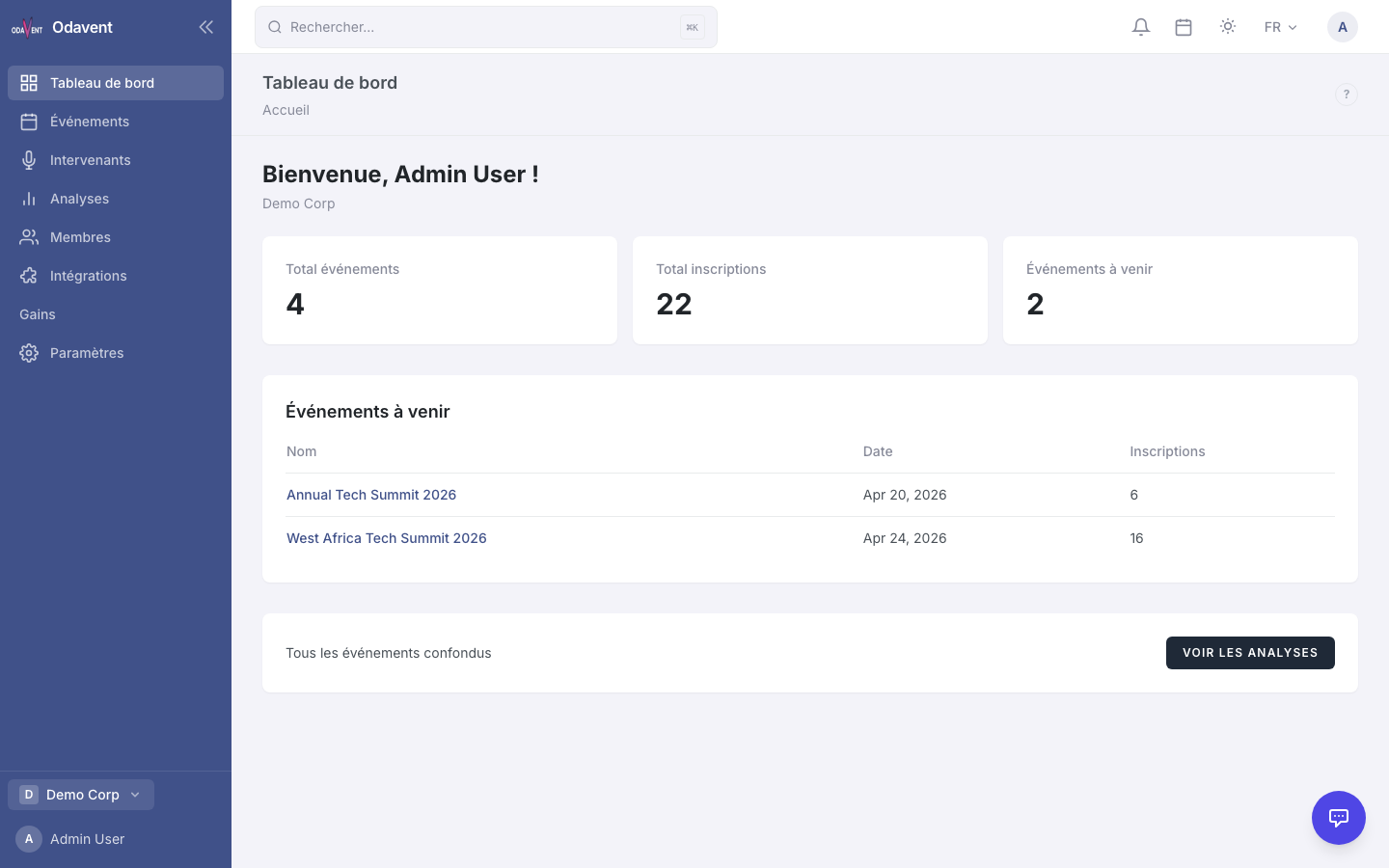
Section titled “Dashboard Overview”The Dashboard is the first page you see after logging in. It gives a quick snapshot of your organization’s activity.
What you’ll find on the dashboard:
- Upcoming Events — Your next 3–5 events, with registration counts and status badges.
- Recent Registrations — The latest attendees to sign up across all events.
- Revenue Summary — Total ticket revenue this month (Pro and Enterprise plans).
- Quick Actions — Shortcuts to create an event, send an email, or view reports.
Tip: Use the global search (press Cmd+K on Mac or Ctrl+K on Windows/Linux) to jump directly to any event, speaker, or registration without navigating through menus.