
Public Pages (Attendee Experience)
This section describes what your attendees see and can do on the public-facing pages of your event.
Event Registration
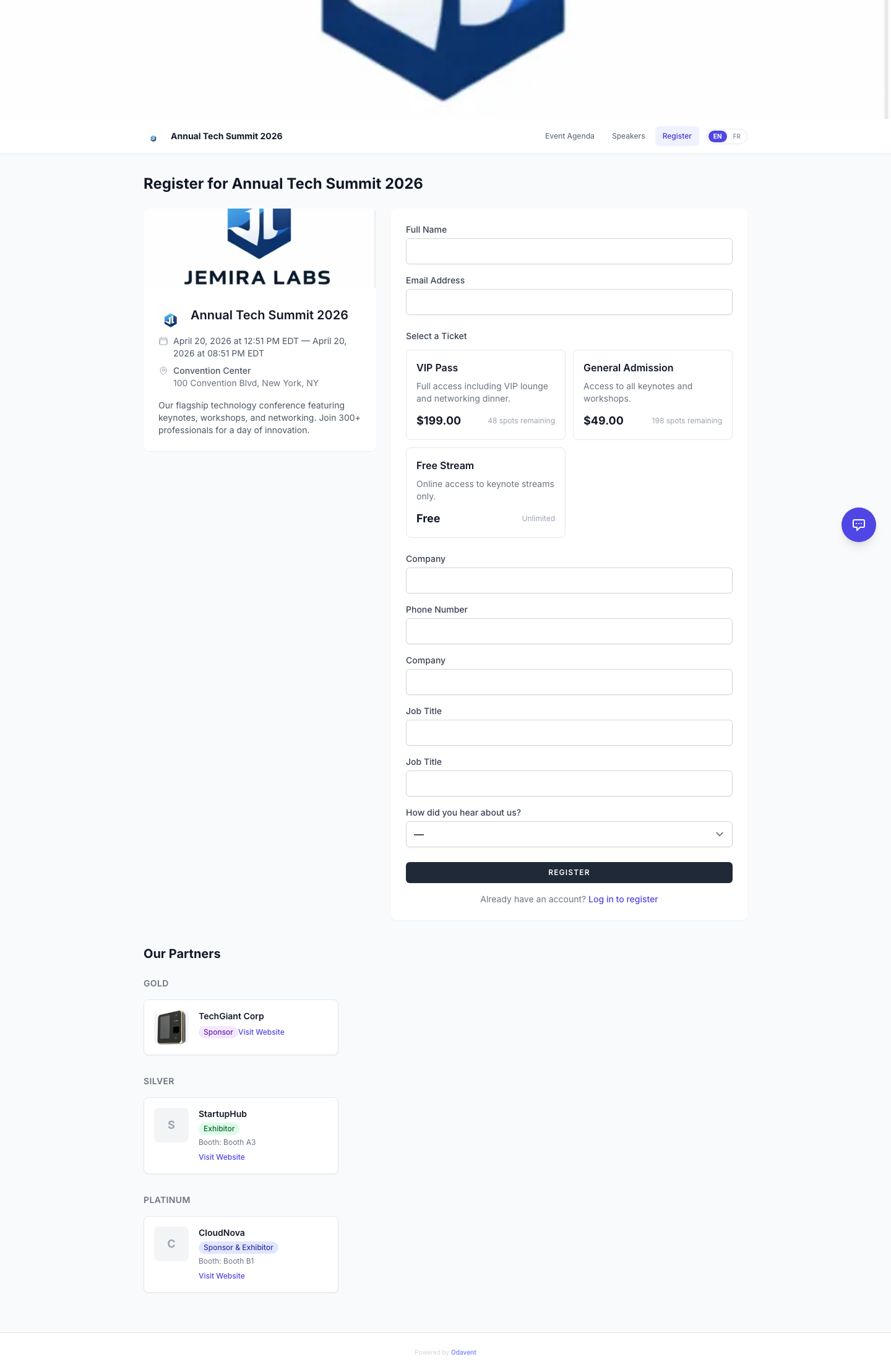
Section titled “Event Registration”Attendees reach the registration page at /events/{event-slug}/register.
- Attendees select a ticket type (if multiple are available).
- They fill in the registration form (name, email, and any custom fields you have configured).
- For free events, they click Complete Registration.
- For paid events, they click Proceed to Payment and complete the checkout via Stripe or Paystack.
- A confirmation email is sent immediately.
Public Agenda (Sessions, Bookmarks)
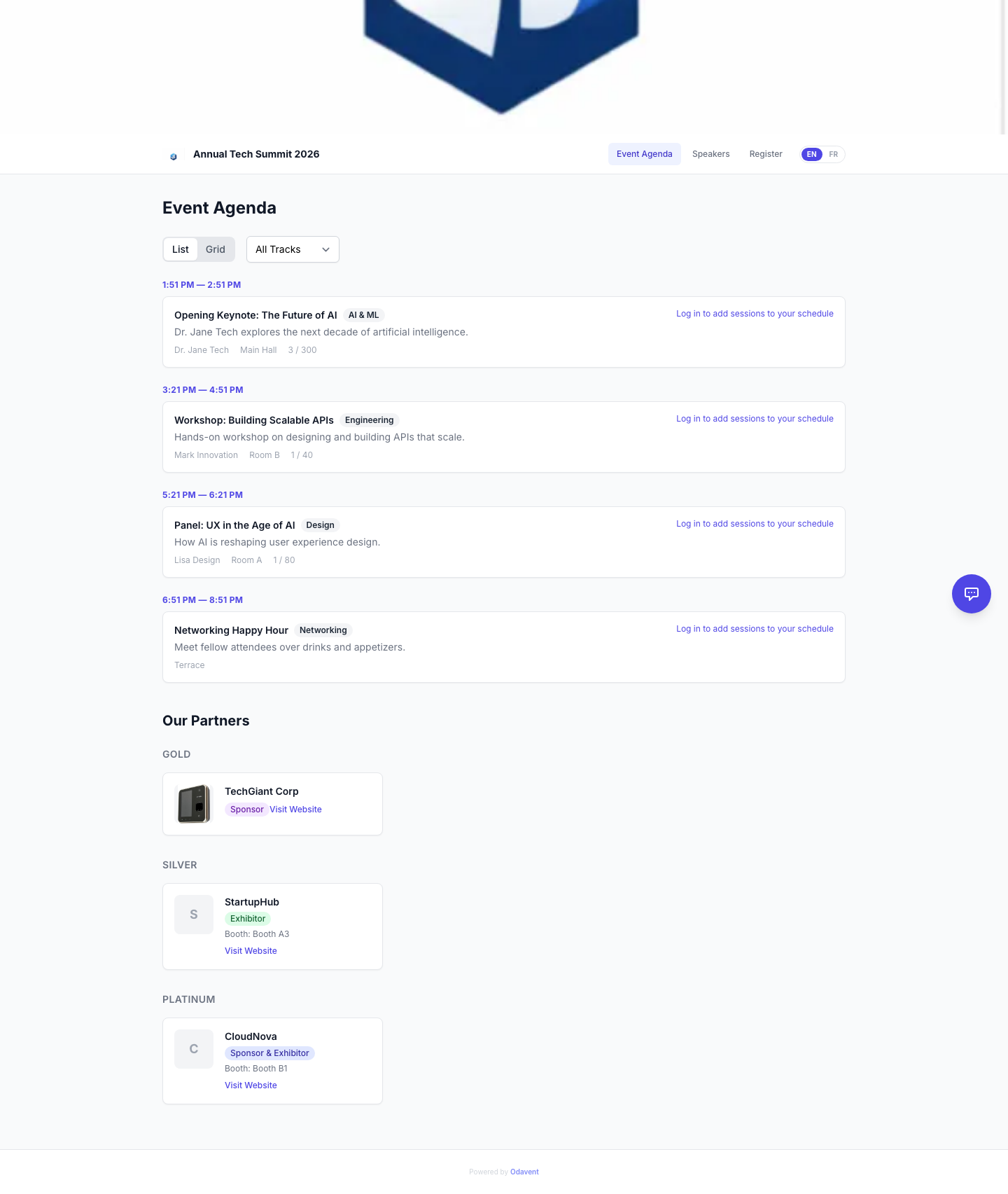
Section titled “Public Agenda (Sessions, Bookmarks)”The public agenda is available at /events/{event-slug}/agenda.
- Sessions are listed by date and time, filterable by track.
- Attendees can bookmark sessions by clicking the bookmark icon (requires being logged in or having a registration link).
- Bookmarked sessions appear in the attendee’s My Agenda view.
Speaker Directory
Section titled “Speaker Directory”Available at /events/{event-slug}/speakers.
- Lists all speakers for the event with their photo, name, company, and bio.
- Clicking a speaker opens their full public profile page.
- Sessions for each speaker are linked from their profile.
Photo Wall
Section titled “Photo Wall”(If enabled for the event)
Attendees can upload photos to a shared Photo Wall at /events/{event-slug}/photos.
- Click Upload Photo.
- Select an image from your device.
- Optionally add a caption.
- The photo appears on the wall after upload.
Event Website
Section titled “Event Website”The event’s custom website (built with the Website Builder) is available at /events/{event-slug}/site.
Multi-page navigation is available via the event website’s navigation bar, with pages such as Home, Speakers, Agenda, Register, Sponsors, and any custom pages you created.
Add to Calendar
Section titled “Add to Calendar”Attendees can add the event to their personal calendar from:
- The registration confirmation page (after completing registration).
- The public event page.
Options available:
- Google Calendar — Opens Google Calendar with event details pre-filled.
- Outlook — Opens Outlook Web with event details pre-filled.
- Download .ics — Downloads a standard calendar file compatible with Apple Calendar, Outlook, and other apps.
Individual sessions also have “Add to Calendar” buttons on the agenda page.
Progressive Web App (PWA)
Section titled “Progressive Web App (PWA)”Each event can be installed as a Progressive Web App on an attendee’s phone for an app-like experience.
- On a mobile browser, look for the Add to Home Screen prompt.
- Once installed, the event app works offline for agenda browsing.
- Push notifications can be sent to PWA-installed attendees.