
Importing & Exporting
Exporting Attendees
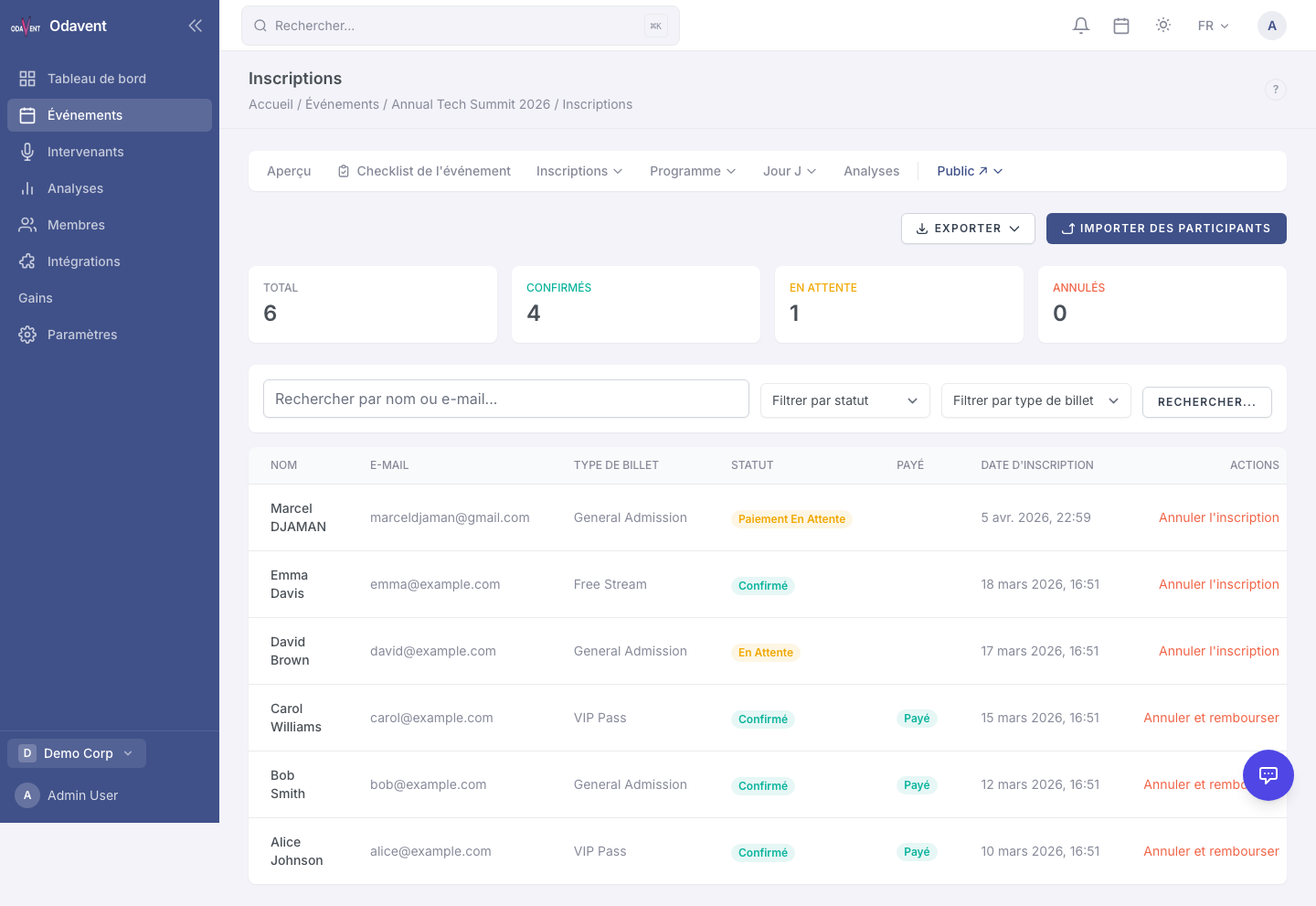
Section titled “Exporting Attendees”- Go to the Registrations tab.
- Apply any filters you want (the export respects your active filters).
- Click Export and choose the format:
- CSV — Spreadsheet-compatible, best for data analysis.
- Excel (.xlsx) — Formatted spreadsheet.
- PDF — Printable attendee list.
- The file will download immediately.
Importing Attendees
Section titled “Importing Attendees”You can bulk-import attendees from a spreadsheet — useful for migrating from another platform or pre-registering attendees manually.
- Go to Registrations → Import.
- Download the CSV template to see the required columns (first name, last name, email, ticket type).
- Fill in your data.
- Click Upload CSV and select your file.
- Review the preview showing which rows will be imported and any errors detected.
- Click Confirm Import.
Note: Duplicate emails (already registered for the event) are skipped. Each imported attendee receives a confirmation email.