Keyboard Shortcuts & Tips
Cmd+K Global Search
Section titled “Cmd+K Global Search”Press Cmd+K (Mac) or Ctrl+K (Windows/Linux) from anywhere in the app to open the Command Palette.
- Type any text to search across events, speakers, registrations, and more.
- Results are grouped by type with icons.
- Use the arrow keys to navigate results and Enter to open.
- Press Escape to close.
Dark Mode Toggle
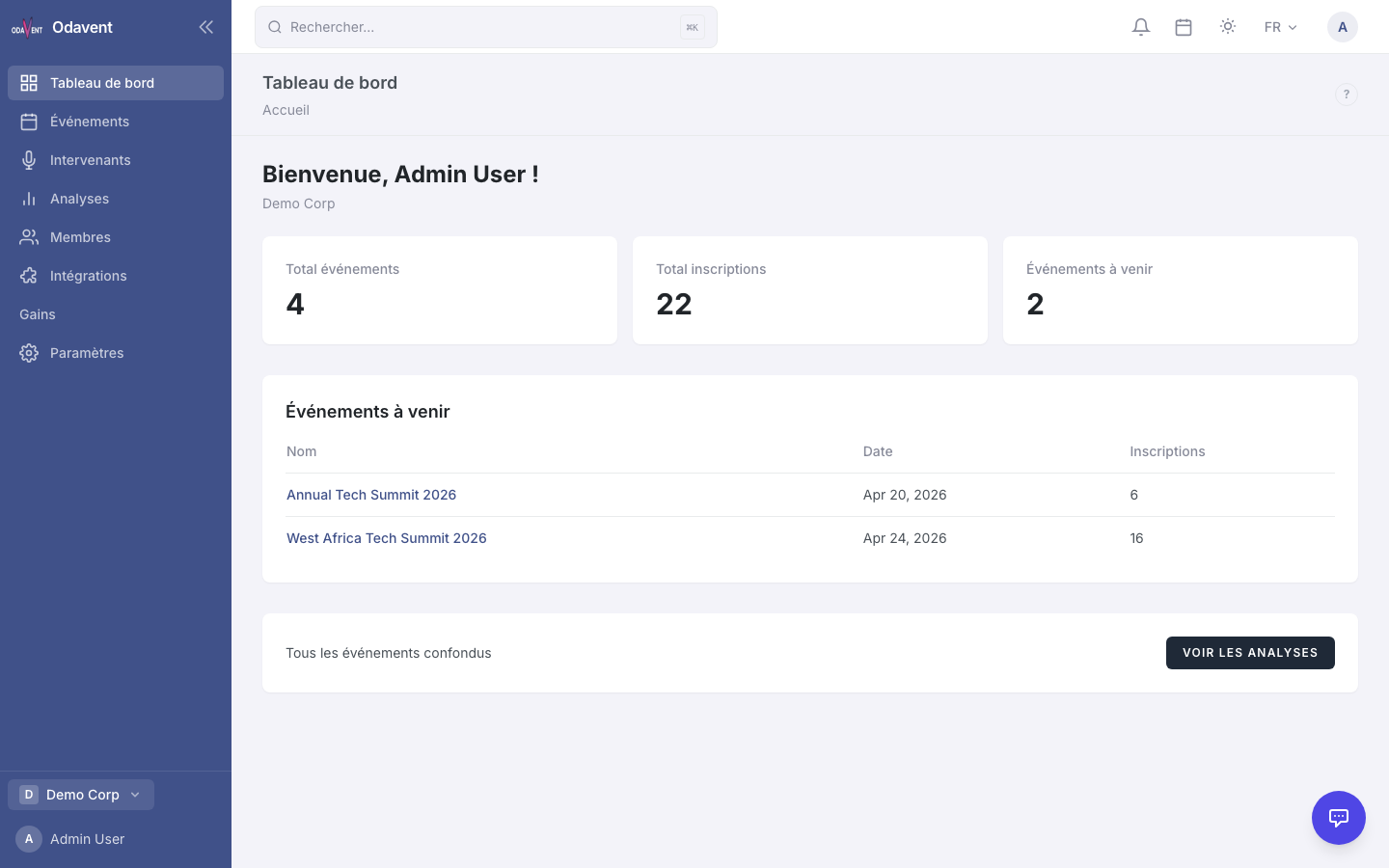
Section titled “Dark Mode Toggle”- Click the theme icon in the header (sun or moon icon).
- Choose from:
- Light — White background, dark text.
- Dark — Dark background, light text.
- System — Automatically matches your operating system’s appearance setting.
The preference is saved to your account and persists across sessions and devices.
Layout Switching (Top Navigation / Sidebar)
Section titled “Layout Switching (Top Navigation / Sidebar)”The platform offers two navigation layouts:
- Top Navigation — Menu bar across the top of the screen. Good for wide monitors.
- Sidebar — Collapsible menu panel on the left side. Good for laptops and focused work.
To switch layout:
- Click the layout icon in the header.
- Select Top Navigation or Sidebar.
The preference is saved to your account.
Language Switching (English / French)
Section titled “Language Switching (English / French)”The platform is available in English and French.
To switch language:
- Click the language indicator in the header (e.g., “EN” or “FR”).
- Select your preferred language.
- The page reloads in the selected language. All UI labels, buttons, and system messages switch immediately.
Note: Email templates sent to attendees also respect the language setting when the template has been localized.
Notifications Bell
Section titled “Notifications Bell”The bell icon in the header shows your unread notification count.
- Click it to open the notification dropdown.
- Notifications are grouped into Unread and Read sections.
- Click a notification to mark it as read and navigate to the relevant item.
- Click the check icon to mark a single notification as read without navigating.
- Click “Mark All as Read” to clear all unread notifications at once.
- Click the trash icon to remove a notification permanently.
- Notifications auto-refresh every 60 seconds.
- Click Manage Preferences in the dropdown to update which notifications you receive.
Keyboard Shortcuts
Section titled “Keyboard Shortcuts”Press ? from anywhere in the app to open the keyboard shortcuts panel.
| Shortcut | Action |
|---|---|
| Cmd+K / Ctrl+K | Open search |
| ? | Show keyboard shortcuts |
| G then D | Go to Dashboard |
| G then E | Go to Events |
| G then S | Go to Speakers |
| G then A | Go to Analytics |
| G then M | Go to Members |
| G then P | Go to Profile |
| N | New event (on Events page) |
| Esc | Close modal or panel |
You can also access the shortcuts panel from your profile menu -> Keyboard Shortcuts.
Tip: The “G then X” shortcuts work like Gmail/GitHub — press G, then within 800ms press the second key.
Embeddable Widget
Section titled “Embeddable Widget”(Phase 6 feature)
You can embed your event’s registration form or agenda on any external website (WordPress, Webflow, or plain HTML) using a small JavaScript snippet.
- Go to your event’s Settings → Embed.
- Copy the embed code snippet.
- Paste it into your website’s HTML wherever you want the widget to appear.
The widget renders in an isolated Shadow DOM, so it will not conflict with your website’s existing styles.
End of User Guide
For technical support, contact the support team via Settings → Support or email support@platform.com. For API documentation, visit
/api/docsin your platform instance.