
Integrations
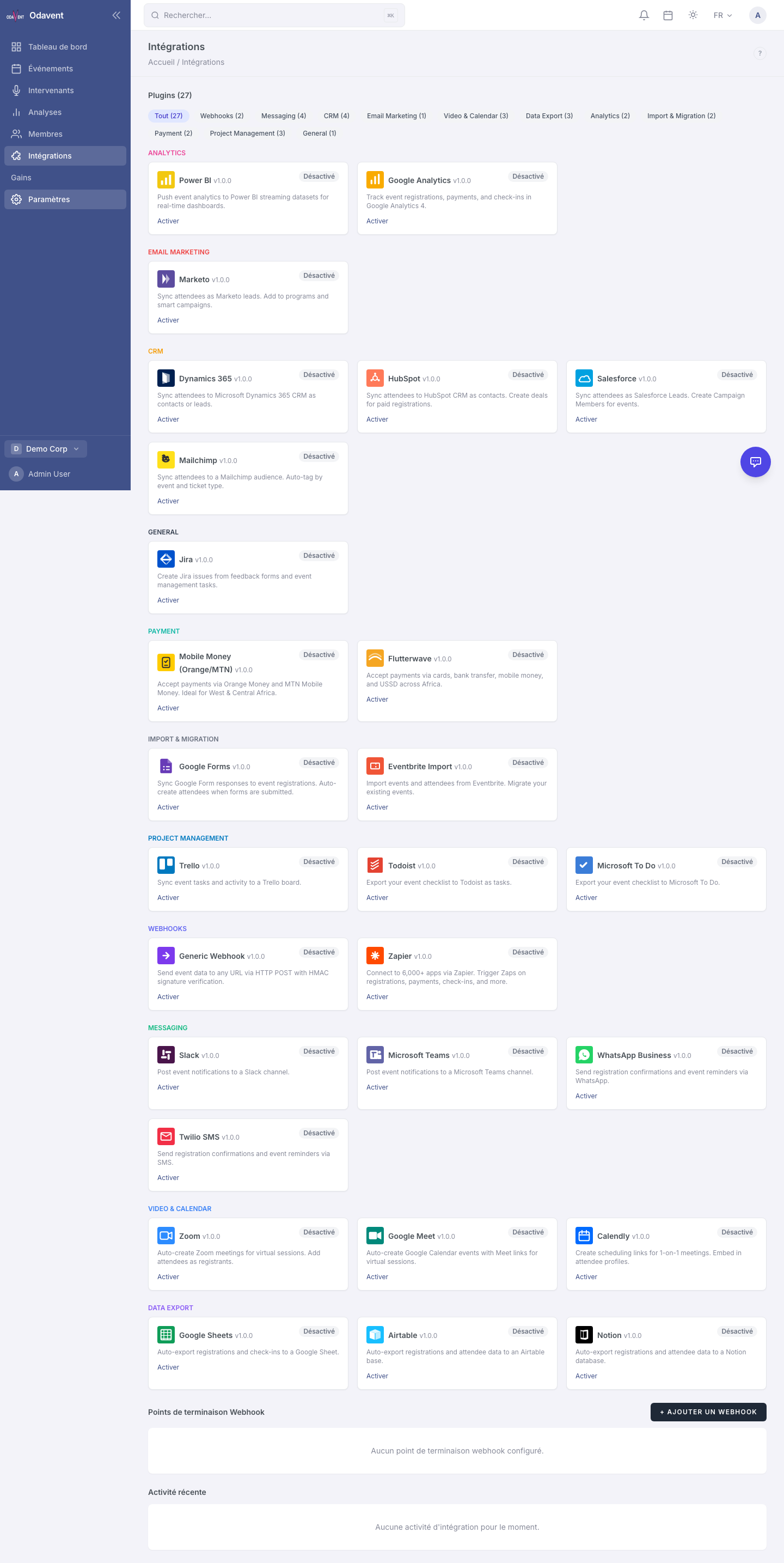
The platform supports 27 integration plugins across 11 categories. Go to Settings → Integrations to browse, install, and configure them.
Available Plugins
Section titled “Available Plugins”| Category | Available Plugins |
|---|---|
| Webhook | Generic Webhook, Zapier |
| Messaging | Slack, Microsoft Teams, WhatsApp (Meta Cloud), Twilio SMS |
| CRM | HubSpot, Salesforce, Mailchimp |
| Video Conferencing | Zoom, Google Meet |
| Data Export | Google Sheets, Airtable, Notion |
| Analytics | Google Analytics (GA4) |
| Payment | Flutterwave, Mobile Money (Orange/MTN MoMo) |
| Import | Eventbrite Import |
| Project Management | Trello, Todoist, Microsoft To Do |
| Enterprise | Power BI, Marketo, Dynamics 365, Jira |
Installing a Plugin
Section titled “Installing a Plugin”- Click the plugin name.
- Click Install.
- Enter the required credentials (API keys, OAuth authorization, etc.).
- Click Save Configuration.
- The plugin status changes to Active.
Webhook Marketplace
Section titled “Webhook Marketplace”The Webhook Marketplace contains pre-built integration recipes — ready-made webhook configurations that connect your event data to third-party services.
- Go to Settings → Webhook Marketplace.
- Browse recipes by category.
- Click Install on a recipe to apply it to your organization.
- Webhooks fire automatically when the configured events occur (e.g., new registration, check-in, payment).
Project Management Integrations
Section titled “Project Management Integrations”Trello
Section titled “Trello”Syncs event activity to a Trello board. Automatically creates cards when events are published, registrations are created, sessions are added, or speakers are assigned.
- Go to Settings -> Integrations and click Trello.
- Enter your API Key and API Token (from trello.com/app-key).
- Optionally enter a Board ID — leave empty to auto-create a board.
- Click Enable.
The plugin creates four default lists: Marketing, Registrations, Content, and Speakers.
Todoist
Section titled “Todoist”Exports your event checklist to Todoist as a project with tasks.
- Enable Todoist in Settings -> Integrations.
- Enter your API Token (from Todoist Settings -> Integrations -> Developer).
- Go to your event’s Checklist tab and click Export to apps.
A Todoist project named “Event: [Event Name]” is created with all checklist items as tasks.
Microsoft To Do
Section titled “Microsoft To Do”Exports your event checklist to Microsoft To Do.
- Enable Microsoft To Do in Settings -> Integrations.
- Enter your Access Token (OAuth 2.0 with Tasks.ReadWrite scope).
- Go to your event’s Checklist tab and click Export to apps.
A task list named “Event: [Event Name]” is created in Microsoft To Do.