
Refunds & Invoices
Refund Management
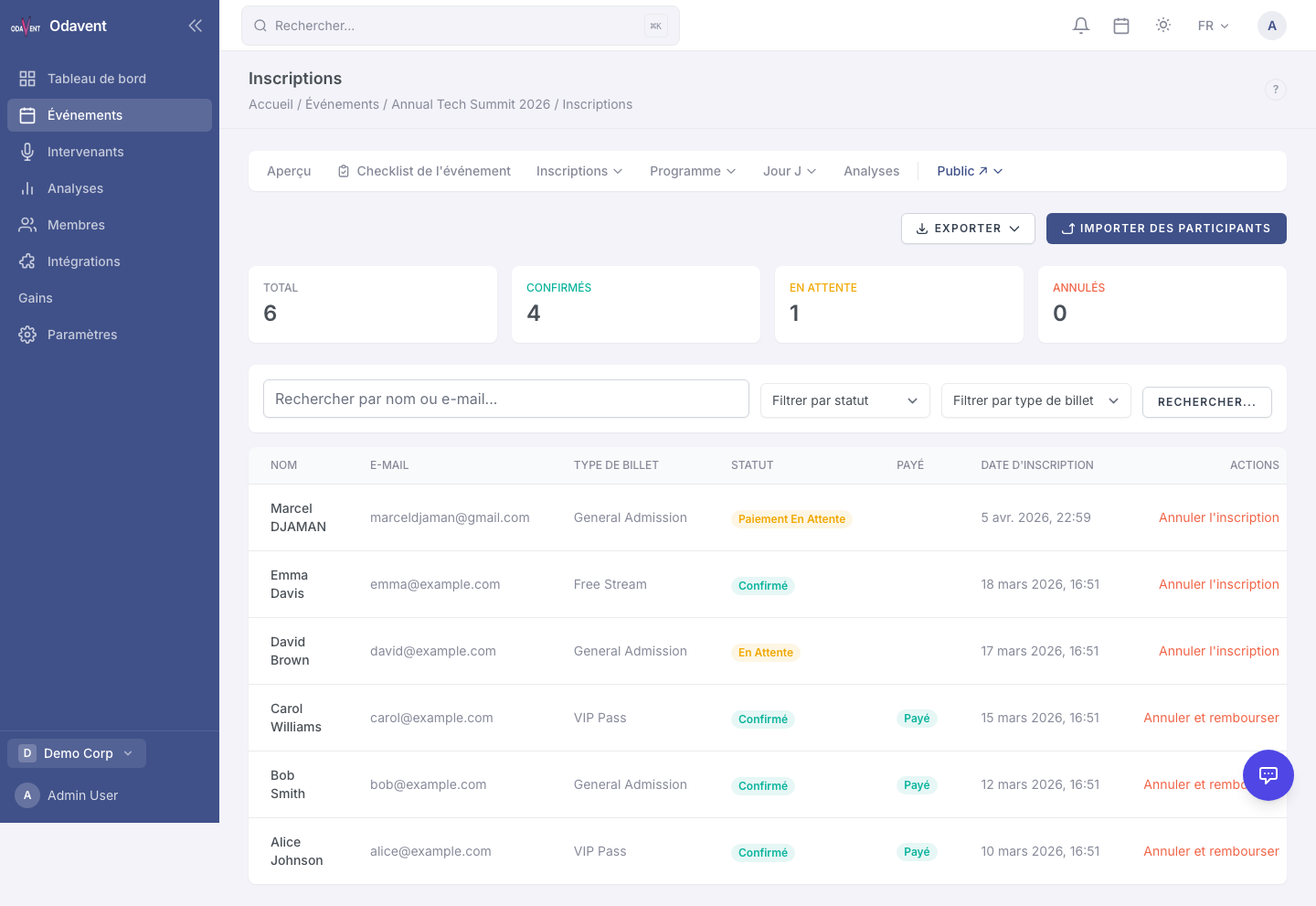
Section titled “Refund Management”Organizers can process refunds for confirmed paid registrations.
To issue a refund:
- Open the registration you want to refund (under Registrations → [Attendee Name]).
- Click Issue Refund.
- Choose:
- Full Refund — Refunds the full ticket price.
- Partial Refund — Enter the amount to refund.
- Add an optional note (shown in the audit log but not sent to the attendee).
- Click Confirm Refund.
The refund is processed via Stripe or Paystack immediately. The attendee receives a confirmation email and the payment status updates to “Refunded.”
Invoice / Receipt PDFs
Section titled “Invoice / Receipt PDFs”Each paid registration automatically generates an Invoice or Receipt PDF.
- For attendees: A link to download the invoice is included in the confirmation email and available in their account under My Registrations.
- For organizers: Go to the registration detail and click Download Invoice to get a copy.
The PDF includes the attendee’s name, event details, ticket type, amount paid, tax details (if configured), and a unique invoice number.
Subscription Billing History
Section titled “Subscription Billing History”Organization admins can view their subscription invoices from Stripe.
- Go to Settings -> Subscription.
- Scroll down to the Billing History section.
- You will see a table of all invoices with:
- Invoice number
- Date
- Amount
- Payment status (Paid, Open, Void)
- Click Download PDF to download any invoice.
Tip: Invoices are fetched directly from Stripe and include your organization name, plan details, and payment information. Share them with your accounting department for expense reporting.