
Managing Speakers
Adding Speakers
Section titled “Adding Speakers”- Open your event and click the Speakers tab.
- Click Add Speaker.
- Fill in:
- Full Name — Required.
- Email — Used to send the speaker invitation.
- Company / Organization — Where the speaker works.
- Job Title — Their role.
- Bio — Short biography displayed on the public speaker page.
- LinkedIn URL / Twitter / X Handle — Optional social links.
- Photo — Upload a headshot (recommended 400×400 px).
- Click Save Speaker.
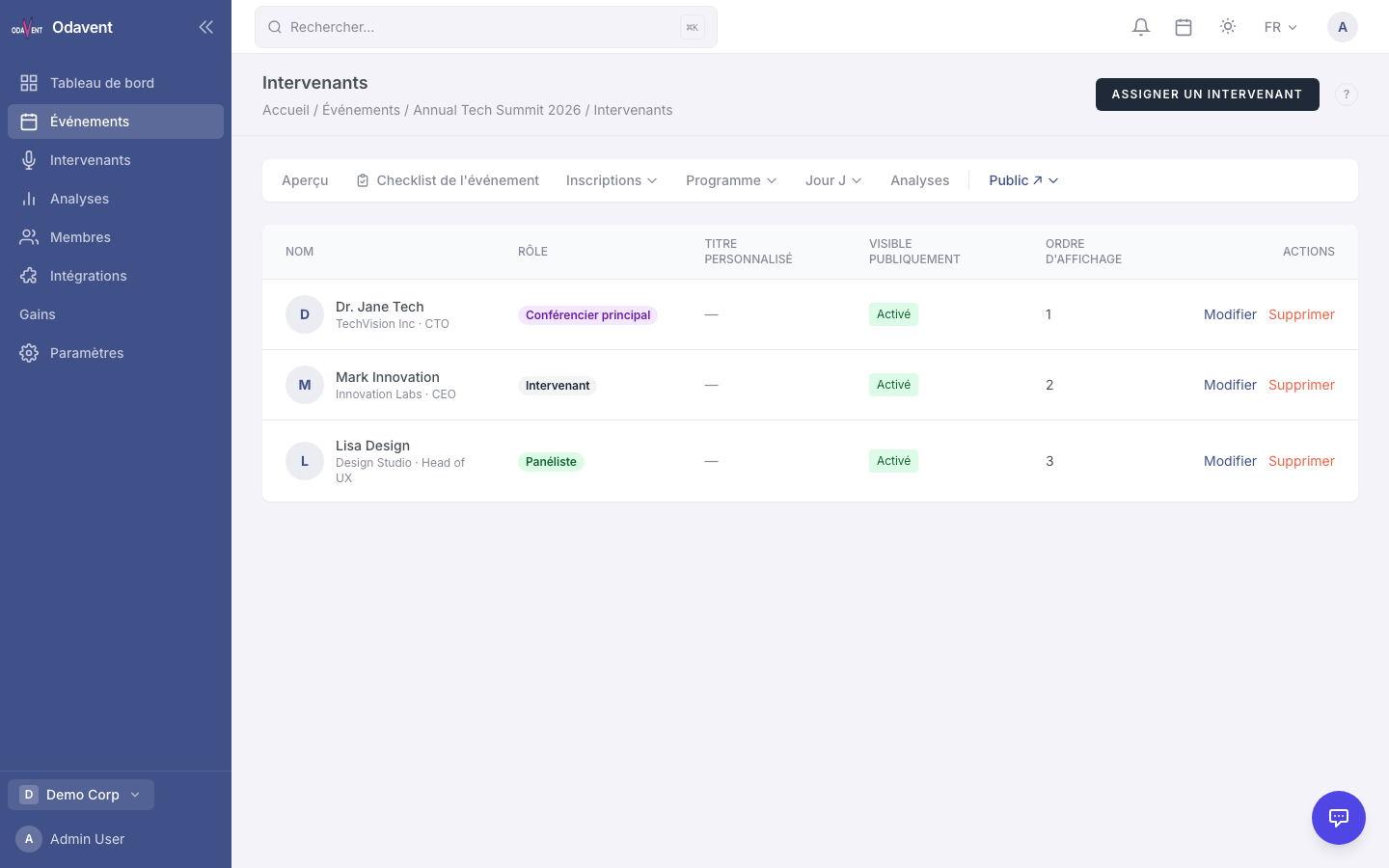
Speaker Roles
Section titled “Speaker Roles”Each speaker assigned to an event or session can have a role that reflects their contribution:
- Keynote — Featured speaker, highlighted prominently.
- Speaker — Standard presenter.
- Panelist — Participant in a panel discussion.
- Moderator — Facilitates a session or panel.
To set a speaker’s role, edit the speaker assignment on the session or from the speaker detail page.
Importing and Exporting Speakers
Section titled “Importing and Exporting Speakers”Import:
- Go to Speakers → Import.
- Download the CSV template.
- Fill in your data and upload.
Export:
- Go to the Speakers tab.
- Click Export and select CSV, Excel, or PDF.