Editor
Using the GrapeJS Editor (Drag-and-Drop)
Section titled “Using the GrapeJS Editor (Drag-and-Drop)”The editor uses GrapeJS, a visual drag-and-drop page builder.
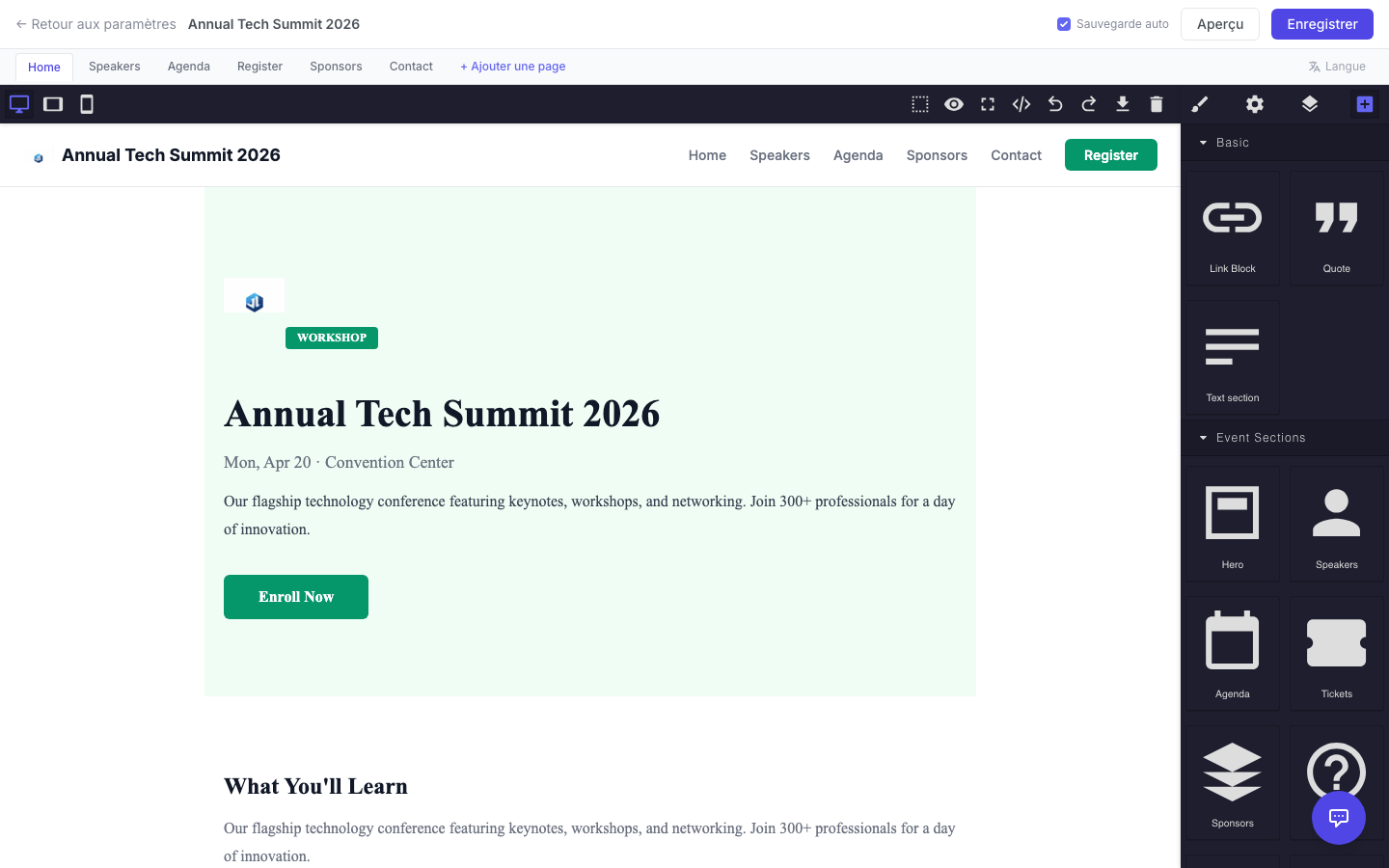
Interface overview:
- Left Panel — Blocks library. Drag blocks onto the canvas.
- Canvas — Your live page. Click any element to select and edit it.
- Right Panel — Style manager for the selected element (colors, fonts, spacing, etc.).
- Top Toolbar — Undo/redo, preview, save, device toggle (desktop/tablet/mobile).
Available blocks:
| Block | What it adds |
|---|---|
| Hero | Full-width banner with heading, subheading, and CTA button |
| Speakers | Grid of speaker cards (pulls from your speaker list) |
| Agenda | Session list with times and tracks |
| Tickets | Registration CTA with ticket type listing |
| Sponsors | Logo grid with tier groupings |
| FAQ | Accordion-style question and answer list |
| Features | 6-card feature grid |
| Countdown | Live countdown timer to the event start |
| CTA | Call-to-action banner with button |
| Header / Nav | Navigation bar with logo and links |
| Footer | Footer with links and copyright |
| Location / Map | Event venue map and address |
| Image Carousel | Rotating photo gallery |
| Social Share | Social media sharing buttons |
To add a block:
- Drag a block from the left panel onto the canvas.
- Click the block to select it and edit text directly on the canvas.
- Use the right panel to change colors, fonts, padding, or other styles.
Live Preview
Section titled “Live Preview”To see how your website looks to visitors:
- Click the Preview button in the toolbar.
- A new tab opens with the full-page preview (no editor chrome).
- Close the preview tab to return to editing.
Tip: You can toggle between Desktop, Tablet, and Mobile views in the toolbar to check responsive design.