Creating Events
Creating an Event
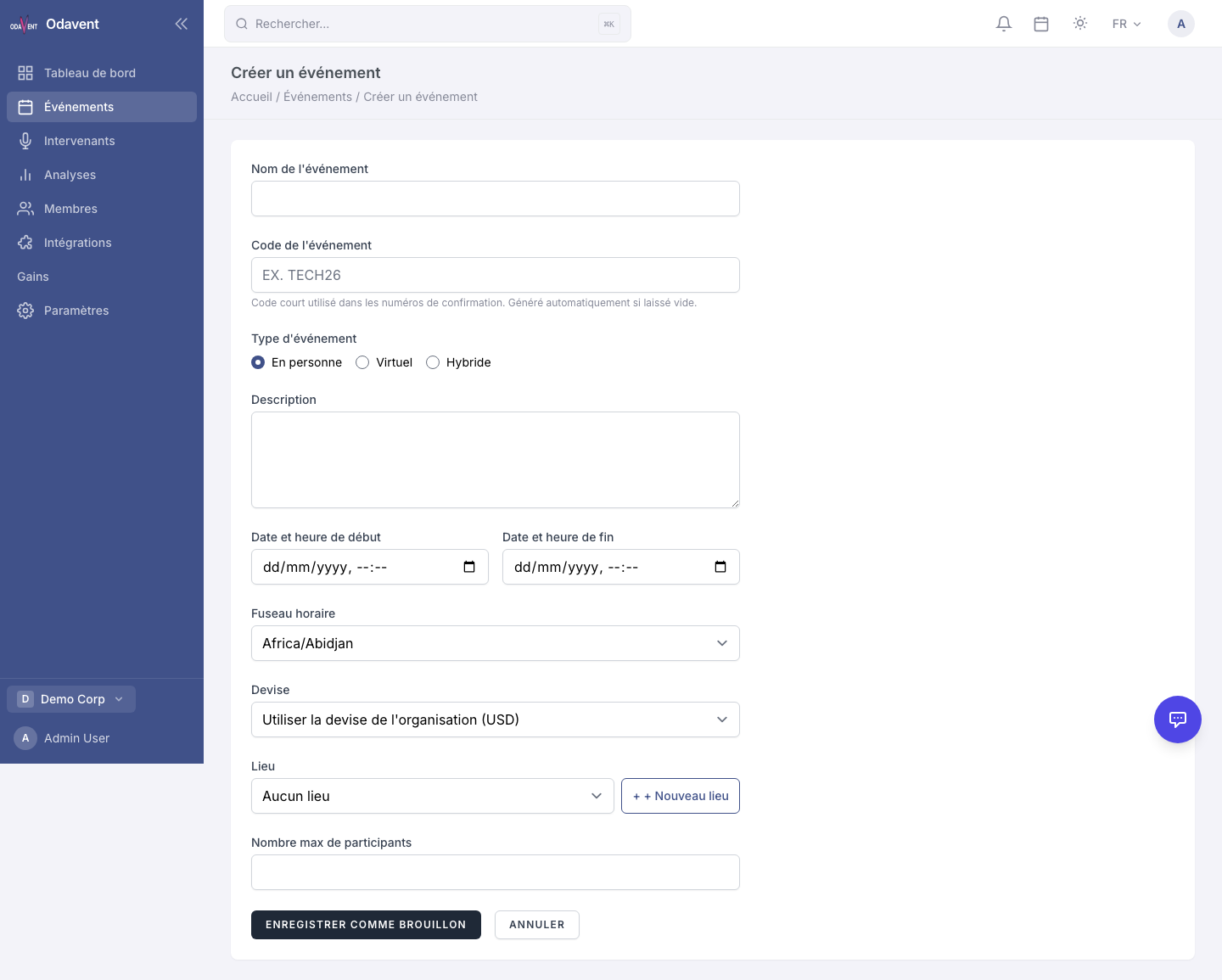
Section titled “Creating an Event”- From the dashboard, click Create Event, or navigate to Events → New Event.
- Fill in the required fields:
- Event Name — The public-facing title of your event.
- Start Date & Time and End Date & Time — Use the date-time picker.
- Timezone — Select the timezone for the event’s location.
- Event Type — Choose from In-Person, Virtual, or Hybrid.
- Description — A rich-text description shown on the public registration page.
- Fill in optional fields:
- Venue — Search for an existing venue or create a new one (name, address, city, country).
- Maximum Capacity — Leave blank for unlimited.
- Tags — Help attendees find your event by topic or industry.
- Click Save as Draft to save without publishing, or continue to the next step.
Tip: For virtual or hybrid events, you can add a meeting link (Zoom, Google Meet, or custom URL) in the Virtual section of the event settings.
Event Status Lifecycle
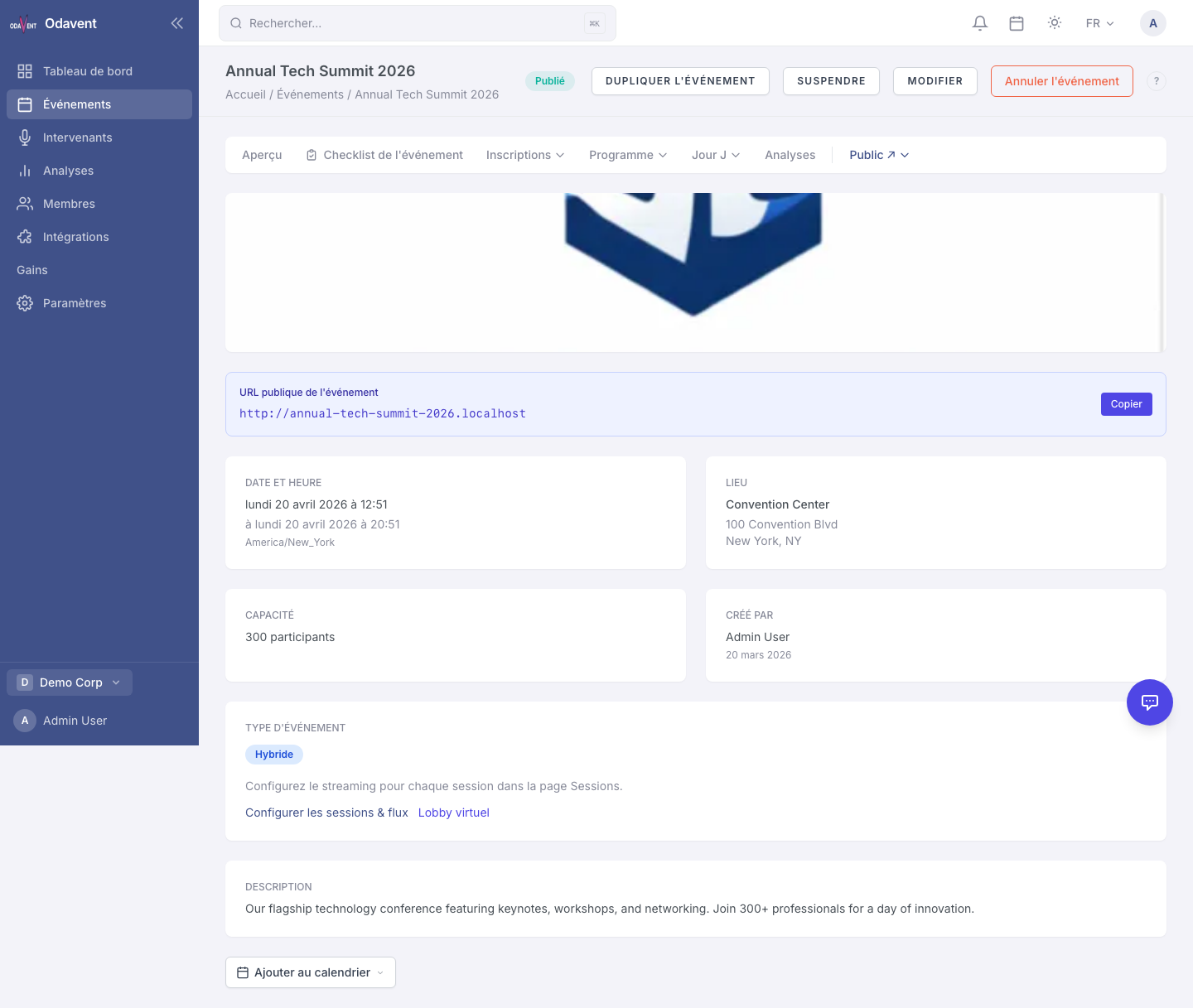
Section titled “Event Status Lifecycle”Every event moves through a defined set of statuses. Understanding these helps you control what attendees see.
| Status | Meaning | Registrations Open? |
|---|---|---|
| Draft | Not visible to the public. You are still setting up. | No |
| Published | Live and visible. Attendees can register. | Yes |
| Paused | Visible but registrations are temporarily suspended. | No |
| Cancelled | Event is cancelled. Attendees are notified. | No |
| Archived | Event is over and moved to archive. Read-only. | No |
To change an event’s status:
- Open the event from Events → [Event Name].
- In the top-right corner, click the Status dropdown (e.g., “Draft”).
- Select the new status.
- Confirm the change in the prompt that appears.
Note: Moving an event to Cancelled will trigger a cancellation email to all confirmed registrants. This action cannot be undone.
Uploading Logo and Banner
Section titled “Uploading Logo and Banner”- Open your event and click Edit Event or go to the Media tab.
- Under Event Logo, click Upload and select an image file (PNG, JPG, or SVG recommended, max 5 MB).
- Under Event Banner, click Upload and select a wide image (recommended size: 1200×400 px).
- Click Save.
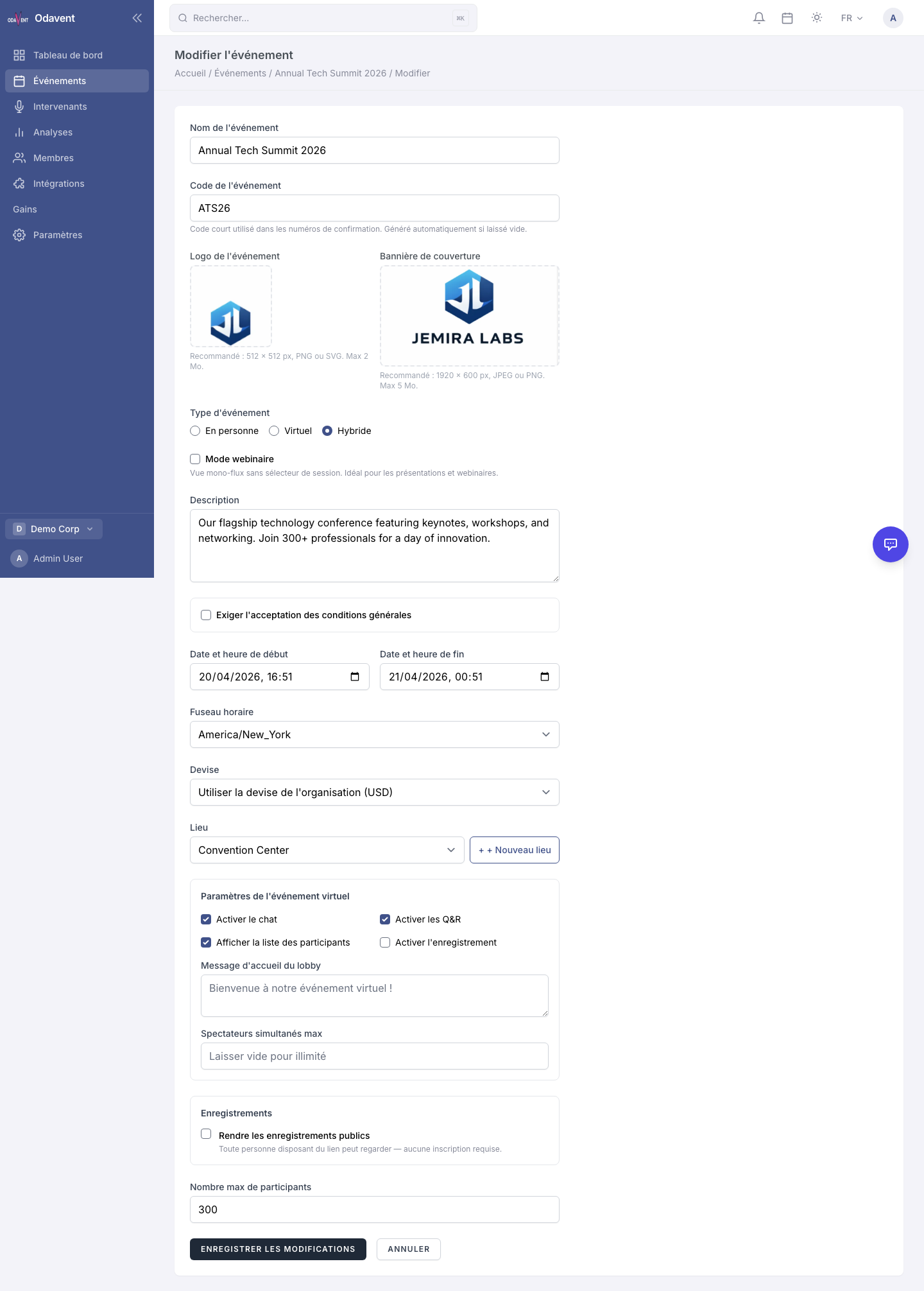
Tip: The logo appears in email templates and the event website’s navigation bar. The banner appears at the top of the public registration page.
Cloning an Event
Section titled “Cloning an Event”Cloning copies an event’s full configuration — ticket types, sessions, speakers, email templates, and settings — into a new draft event. Registrations are not copied.
- On the Events list, click the three-dot menu next to the event you want to clone.
- Select Clone Event.
- Enter a new name and adjust the dates.
- Click Clone.
Saving as Template / Creating from Template
Section titled “Saving as Template / Creating from Template”If you run the same type of event repeatedly, save it as a reusable template.
To save as a template:
- Open the event and go to Settings → General.
- Scroll to the Template section.
- Click Save as Template and give it a name.
To create an event from a template:
- Click Create Event.
- At the top of the form, click Use a Template.
- Select a template from the list.
- Adjust the name and dates, then click Create.
Deleting an Event
Section titled “Deleting an Event”Warning: Deleting an event is permanent and removes all associated registrations, sessions, and media. Consider setting the status to Archived instead.
- Open the event and go to Settings → Danger Zone.
- Click Delete Event.
- Type the event name to confirm.
- Click Delete Permanently.