
Custom Domains
(Enterprise plan)
A custom domain lets you serve your event portal from your own domain (e.g., events.yourcompany.com) instead of the platform’s domain.
Setup Process (3 Steps)
Section titled “Setup Process (3 Steps)”Step 1 — Add Your Domain
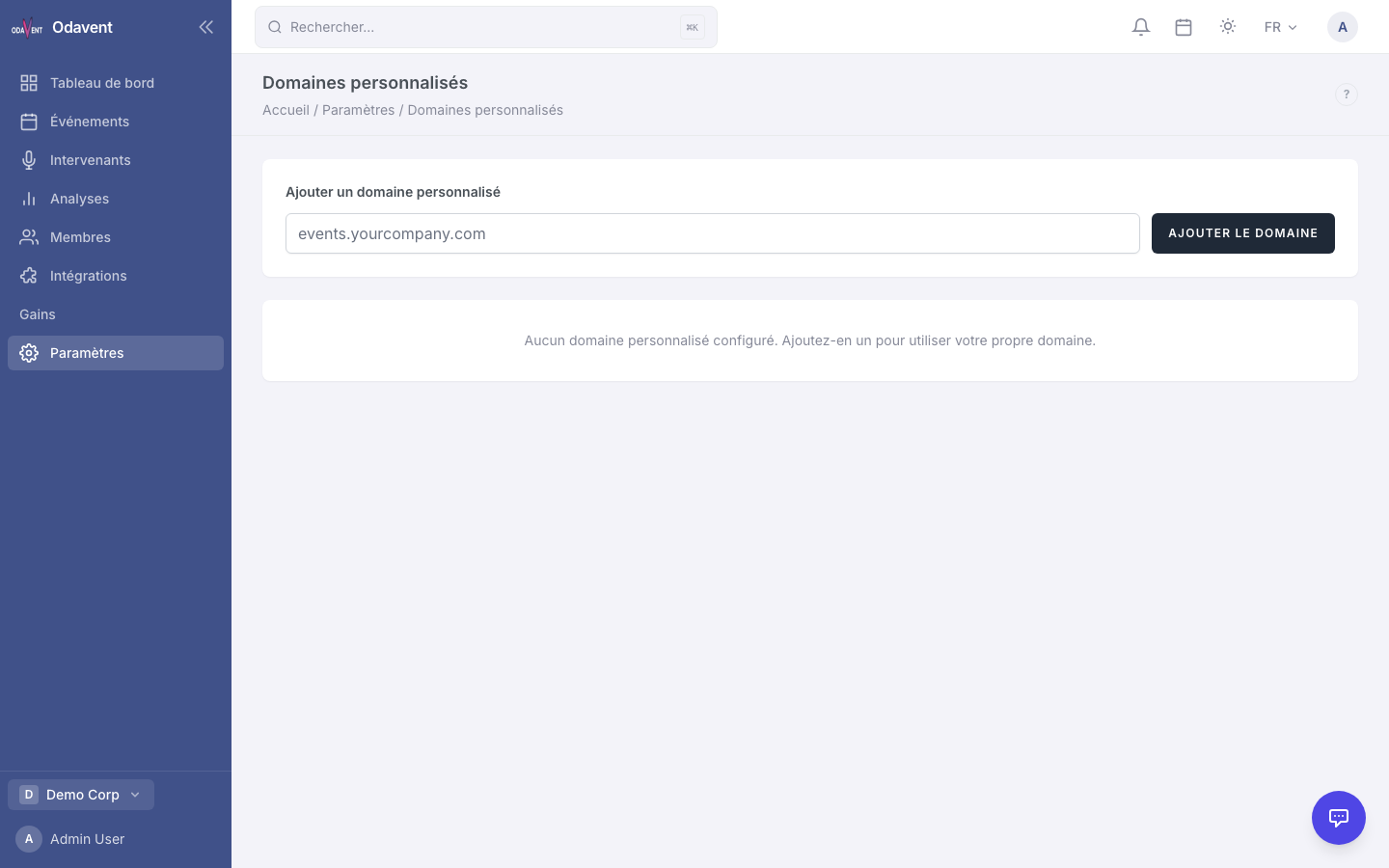
Section titled “Step 1 — Add Your Domain”- Go to Settings → Custom Domains.
- Click Add Domain.
- Enter your domain (e.g.,
events.yourcompany.com). - Click Save.
Step 2 — Verify DNS
Section titled “Step 2 — Verify DNS”- The platform will show you a TXT record to add to your domain’s DNS settings.
- Log in to your domain registrar (GoDaddy, Cloudflare, Namecheap, etc.) and add the TXT record.
- Back on the platform, click Verify DNS.
- The platform checks for the TXT record. This may take up to 24 hours to propagate.
Step 3 — Provision SSL
Section titled “Step 3 — Provision SSL”- After DNS is verified, click Provision SSL Certificate.
- The platform automatically obtains a free SSL certificate via Let’s Encrypt.
- Once SSL is provisioned, your domain is live and traffic is routed to the platform.
Note: SSL certificates auto-renew when they are within 30 days of expiry. You will see a certificate status and expiry date in the custom domains settings.